Here's How We Set Up Call Routing in Microsoft Teams

Effective call routing is at the heart of any well-run communication system. Poor call handling leads to delays, frustration, and negative experiences. It also leads to lost productivity in the form of over- and under-utilized staff. However, with Microsoft Teams, your organization can have a centralized and streamlined call routing system that ensures every call is directed to the right person or department. In this ZIRO article, we'll guide you through the steps to configure Microsoft Teams Call Routing.
What Is Call Routing in Microsoft Teams?
Microsoft Teams call routing helps manage how calls are handled within an organization.
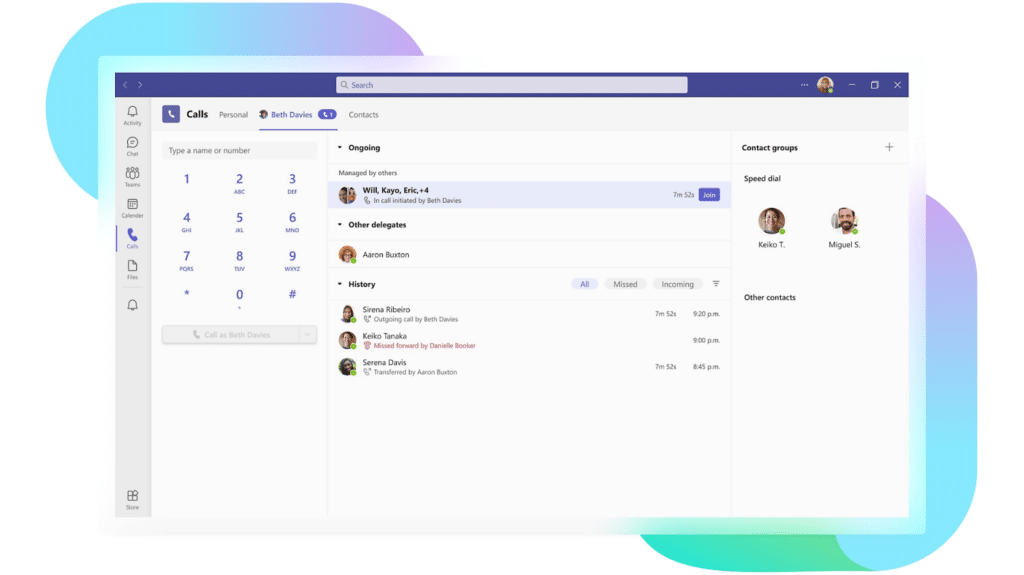
It supports routing for public switched telephone network (PSTN) calls, internal VoIP calls, and federated calls between Teams clients. With Teams call routing, you're setting up automated rules that dictate how Teams processes incoming calls. For example, you can direct unanswered calls to voicemail, forward calls to another person or number, provide menu options for callers to navigate to the right department, and hold callers in a queue until someone is available. Ultimately, it gives you several tools to optimize the efficiency of your business communication setup with relatively little effort.
How to Set Up Call Routing in Microsoft Teams
Step 1: Access the Teams Admin Center
Log in to the Microsoft Teams Admin Center with your admin credentials. From the left-hand menu, go to Voice > Call Routing.
Step 2: Configure Auto Attendants
Auto attendants allow callers to route themselves to the appropriate department based on their input. Go to Voice > Auto Attendants, then click Add. Enter a name and description, and set the language and time zone.
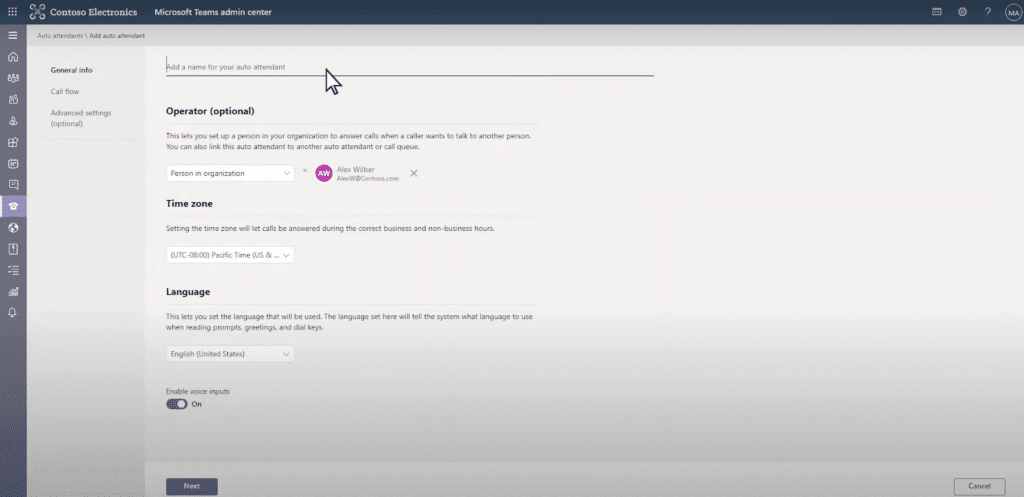
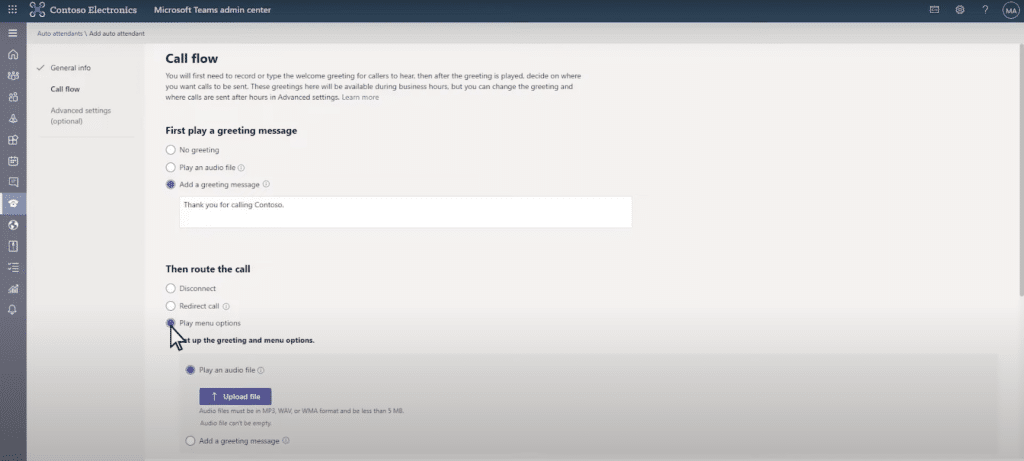
Set up the call flow, including greeting messages and routing, redirection, or call disconnection options. Under "Play Menu Options," create a menu (e.g., "Press 1 for Sales, Press 2 for Support"). Enable dial-by-name or dial-by-extension so callers can be routed directly to specific individuals.
Step 3: Set Up Call Queues
Call queues distribute calls to designated team members who can assist with inquiries.
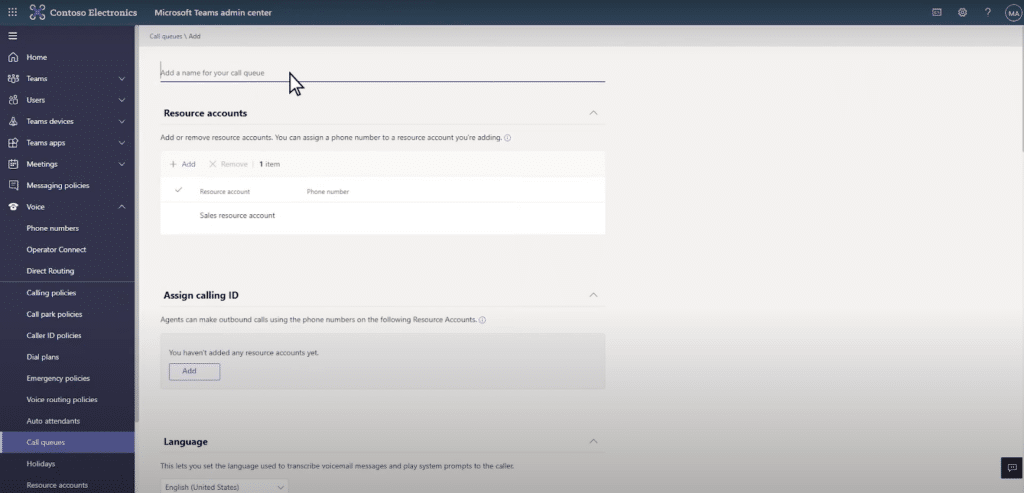
Go to Voice > Call Queues and click Add. You can customize your call queues with options like Language, Greeting, and Music on Hold, and assign queues to specific channels, teams, or individuals.
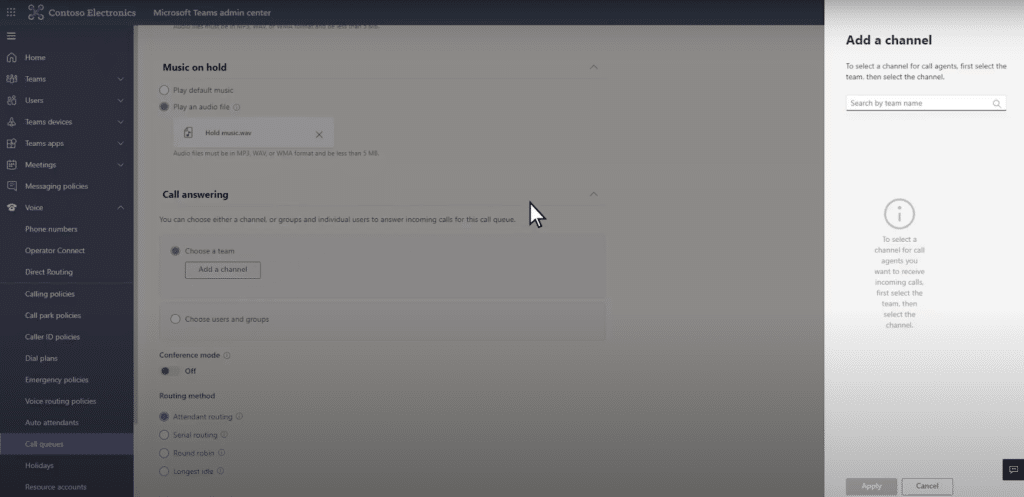
Set overflow rules for full queues, such as redirecting to voicemail or a less busy queue, and adjust timeout settings to ensure unanswered calls are managed properly.
Step 4: Configure Call Forwarding and Groups
Call Forwarding: Users can set up call forwarding in their Teams client under Settings > Calls, forwarding calls to voicemail, another number, or a colleague.
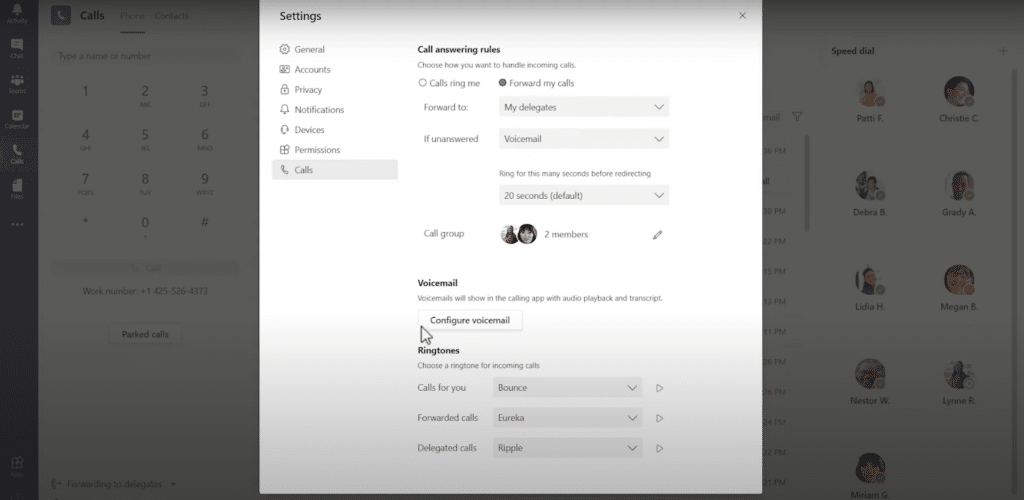
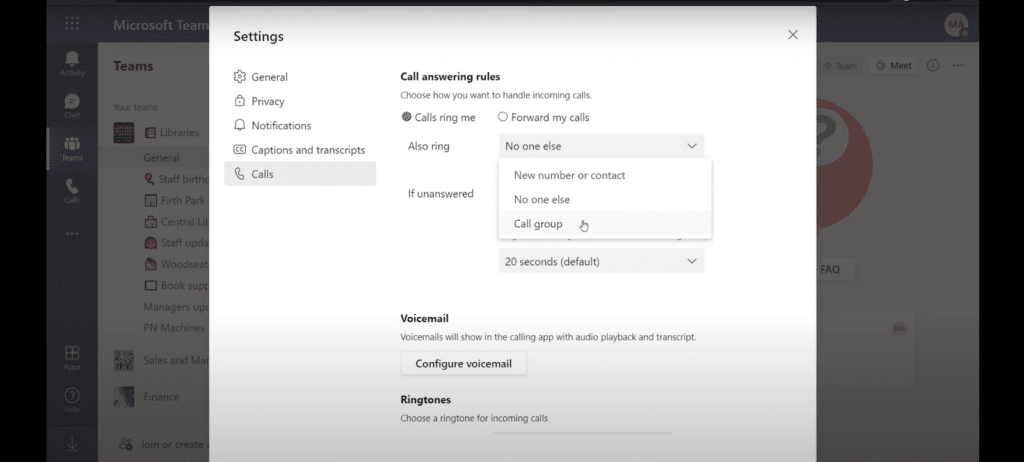
Call Groups: Users can also set up call groups under Settings > Calls. After adding other employees, users can choose whether to ring everyone simultaneously or at a specific interval.
Step 5: Manage Unassigned Numbers
Unassigned numbers can be routed to a user, a resource account linked to an auto attendant or call queue, or to an announcement service. Go to Voice > Phone Numbers, select the Routing Rules tab and click Add. Choose the type of phone number pattern to preconfigure and complete the pattern and routing option. For advanced setups, enter the regular expression for the phone number pattern. To create a routing rule directly for an unassigned number, select it and click Route, then name and describe the rule, set the evaluation order, and select the routing option.
While routing unassigned numbers is important, organizations must also ensure active numbers are properly assigned. At ZIRO, we offer a simple way to assign and manage numbers through the ZIRO Platform for Microsoft.
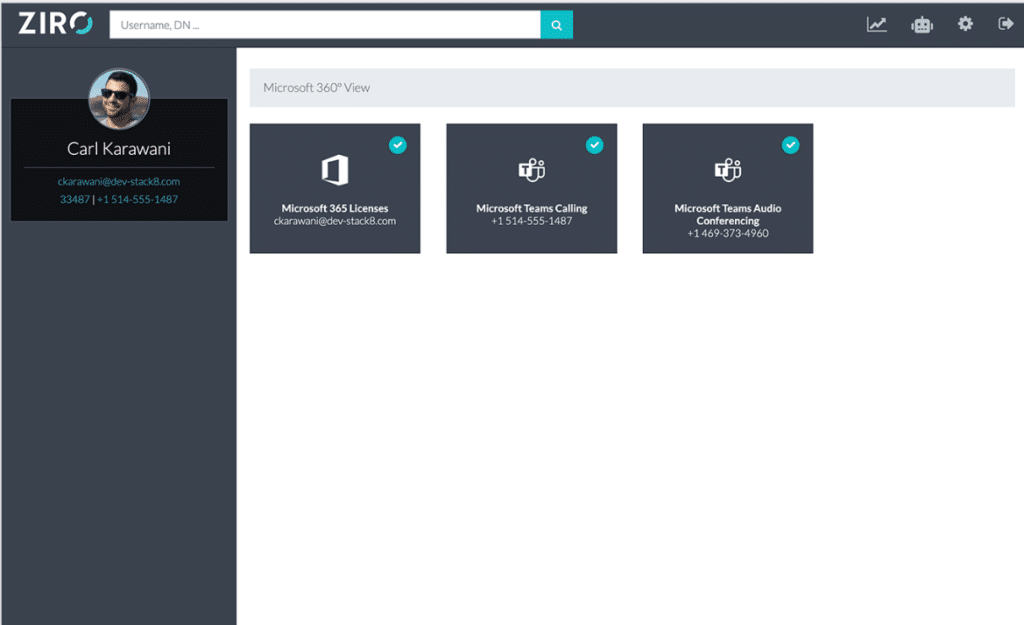
It includes features like Dial Plan Management, Extension Dialing, Automated DID Porting, and Automated & Help Desk Microsoft Teams Provisioning.
Best Practices for Setting up Microsoft Teams Call Routing
Be Mindful of Complex Setups: The steps above work for many organizations, but one-size-fits-all solutions are rare. For hybrid deployments or multi-site routing needs, working with experts like ZIRO ensures a smooth implementation. Set Up PSTN Connectivity: Ensure your organization can make and receive calls via the PSTN; if using Direct Routing, ensure your Session Border Controller (SBC) is configured—or consider our DRaaS solution. Analyze Call Patterns: Review your current call system to create a well-structured Auto Attendant and Call Queue system. Prioritize Common Options: Place the most frequently used menu options first. Smart Queue Management: Avoid assigning service numbers directly to call queues unless they operate 24/7; use an Auto Attendant to redirect during business hours. Automate Basic Information: For FAQs like business hours or location, set up an Auto Attendant with pre-recorded messages.
Perfecting Your Microsoft Teams Call Routing Setup
Setting up call routing in Microsoft Teams is important for improving communication and customer satisfaction. Features like Auto Attendant, Call Queue, and Call Forwarding ensure your organization handles calls quickly and effectively. At ZIRO, we specialize in optimizing your organization's internal and external communication with our tailored Microsoft Teams Direct Routing as a Service (DRaaS) solution—seamless direct and call routing configuration without the complexity and risk. Get in touch today to get started.

Make your oldest system your smartest.
The fastest way to turn complex technical information into clear, actionable intelligence.