How to Convert Cisco Phone to MPP and Register with Microsoft
All on-premise Cisco phones need to be converted to MPP before they can be provisioned with Microsoft Teams or any other 3PCC. The Cisco Cloud Upgrader is a service that allows customers to easily upgrade/migrate the software on Cisco IP Phones so they can connect to Cisco WebEx Calling, Microsoft Teams, or any 3PCC.
Note: MPP phone firmware does not work and is not supported by Cisco Unified Communications Manager. MPP firmware can run on certain models of the 6800, 7800, and 8800 series, but only the 7800 and 8800 series can run either MPP or Enterprise firmware. Eligible devices with hardware versions are in this link.
Migration Licenses
Licenses are required to enable calling services after migrating the firmware. For 3rd-Party Call-Controls, the licenses must be obtained from the Cisco License and Registration Portal. Once you obtain the license files, upload them to the Cisco e2m converter. Allowed files: a single file per phone (.lic extension) or a bundle of license files (.zip archives with multiple .lic files).
Firewall/Proxy Requirements
Filtering traffic using IP addresses is not supported, as the IP addresses used by Cloud Upgrader are dynamic. If your firewall supports URL filtering, white list: cloudupgrader.webex.com (ports 6970/443), activate.cisco.com (port 443), and activation.webex.com (port 443).
Network Requirements
DNS, internet connectivity from the Voice VLAN, and DHCP Options (depending on your migration method).
Migration Methods
There are three recommended methods depending on your deployment: bulk migration with CUCM (CUCM-registered phones), bulk migration with DHCP (phone staging facility), and manual migration (Lab/PoC/several devices). The phones you intend to migrate should be registered with CUCM over an ethernet connection.
Steps
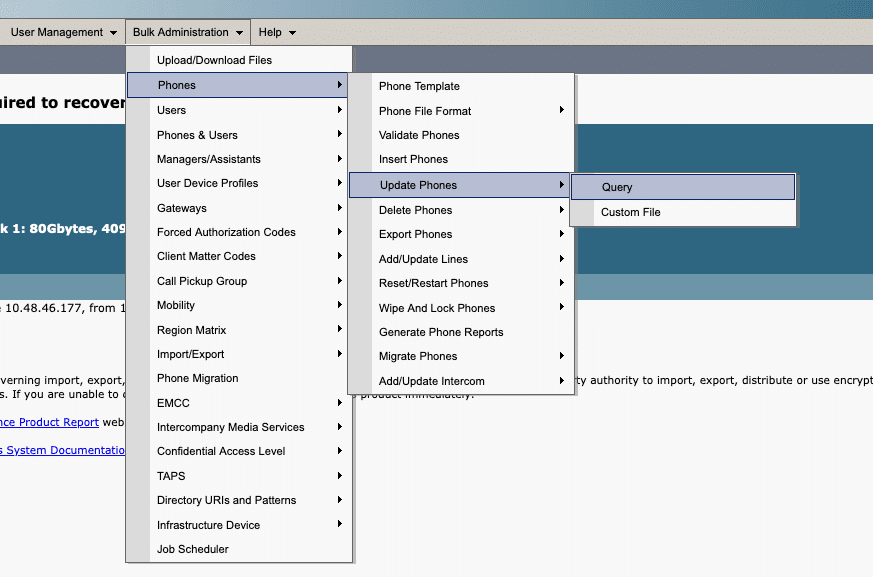
Step 1: Navigate to CUCM. Step 2: From Cisco Unified CM Administration, go to Bulk Administration → Phones → Update Phones → Query.
Step 3: Filter per phone model and optionally other attributes. It's mandatory to filter per Device Type; otherwise, the relevant settings may not be displayed.

Step 4: Click Next. Step 5: Select Apply Config. Step 6: Configure Load Server to cloudupgrader.webex.com.

Step 7: If phones are running 14.1(1) or higher, skip to Step 11; otherwise, configure Phone Load according to Cisco's table.
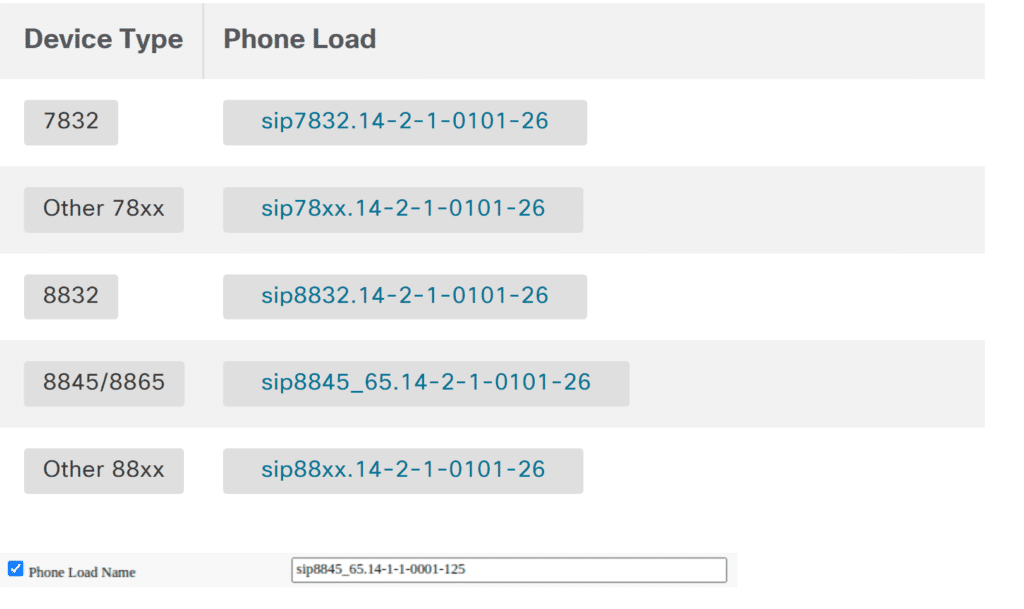
Step 8: Scroll down and select Run Immediately. Step 9: Click Submit. Step 10: Once the job completes, wait for all phones to upgrade (use RTMT for monitoring). Step 11: Proceed to the second upgrade and repeat Steps 2–10 using the different Phone Load.

Step 12: Wait for all phones to upgrade; the migration is complete and phones will run MPP firmware.
Register a Cisco MPP Phone to the Microsoft Teams SIP Gateway
Provisioning
There are two ways to configure the provisioning URL onto the phone: automatically via the DHCP Option, or manually on the Web-UI of the phone.
Automatically through DHCP: Create a DHCP option 150, 43, or 66 and put in one of the URLs—EMEA: `https://emea.ipp.sdg.teams.microsoft.com`; Americas: `https://noam.ipp.sdg.teams.microsoft.com`; APAC: `https://apac.ipp.sdg.teams.microsoft.com`. Connect the phone to the local network and it should get the URL itself. If you already have an Option150 configured (because you also have an existing CallManager environment), you could use Option66, which is by default the first option MPP phones look for, or change the options and sequence on the Web-UI under "Provisioning."
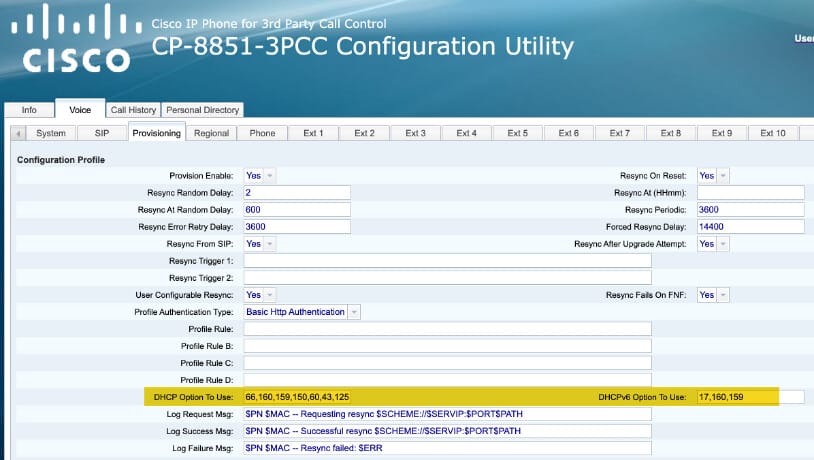
Manually on the Phone Web-UI: Connect the phone to the local network, open the Web-UI, change to "advanced" mode, and go to "Provisioning."
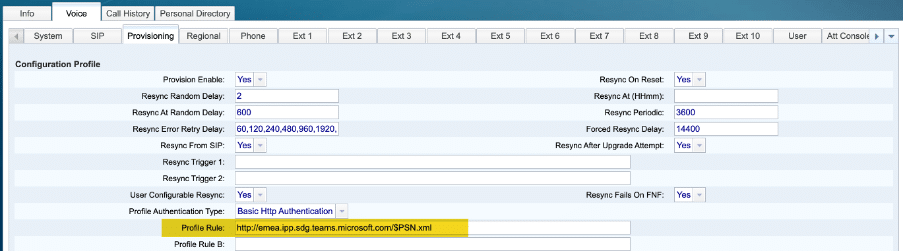
You can also add a supported language into the URL. Add `/lang_fr` between the URL and the `/$PSN.xml`—for example, to use the phone in French: `https://emea.ipp.sdg.teams.microsoft.com/lang_fr/$PSN.xml`.
Login into Microsoft
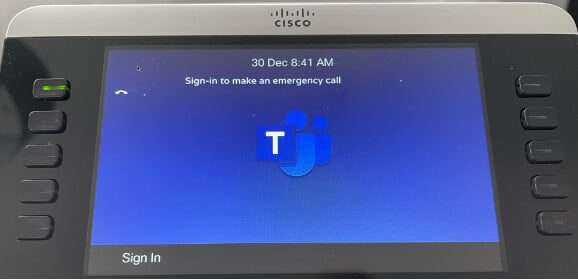
After the phone is provisioned for Microsoft Teams, start the registration on the phone. Press the Sign In softkey.
You will then get a Pairing Code, which is time-sensitive. If it expires, get a new one by pressing the "Update" key.
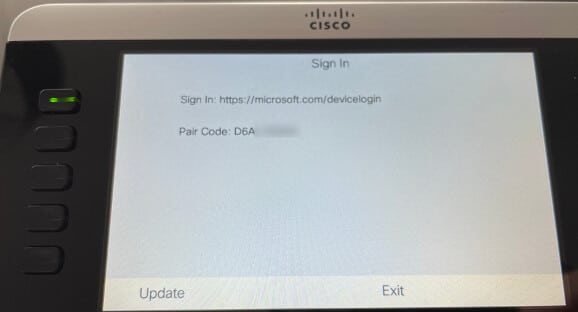
Go to www.microsoft.com/devicelogin and enter the Pair Code, then enter your Microsoft credentials. After a successful login, the phone is registered to the SIP Gateway.

Make your oldest system your smartest.
The fastest way to turn complex technical information into clear, actionable intelligence.